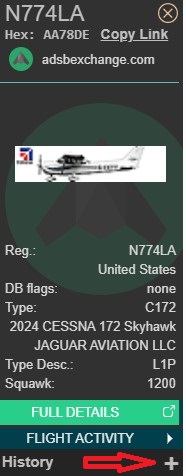
If you’re looking for information on a specific aircraft, the first step is to search by registration number. This can be done on the right-hand side of the page on the map.
After clicking “Search” the aircraft pane will populate on the left-hand side of the screen. By default, the map will show the live position of the aircraft, however you can see past flights by clicking the “+” button under “History”.
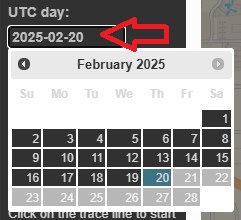
After clicking “+”, you will see a date picker allowing you to choose the date to be viewed. Please note that all dates/times are in UTC/GMT/Zulu time.
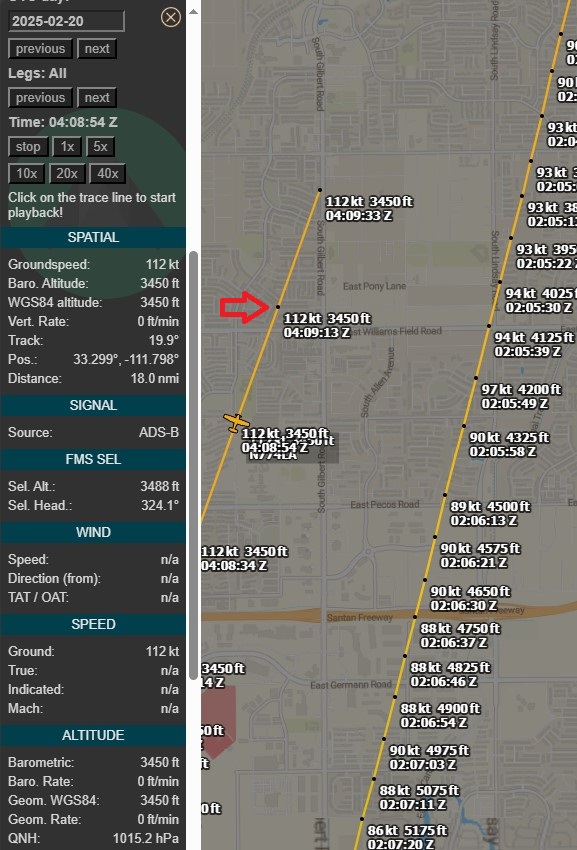
After the track is displayed, you can see details for each datapoint. Click “K” on the right-hand side to see “trackpoints”. You can click on each trackpoint, and the data fields in the left-hand column will update to the data for that specific trackpoint. If the aircraft supports it, you can even see autopilot settings!
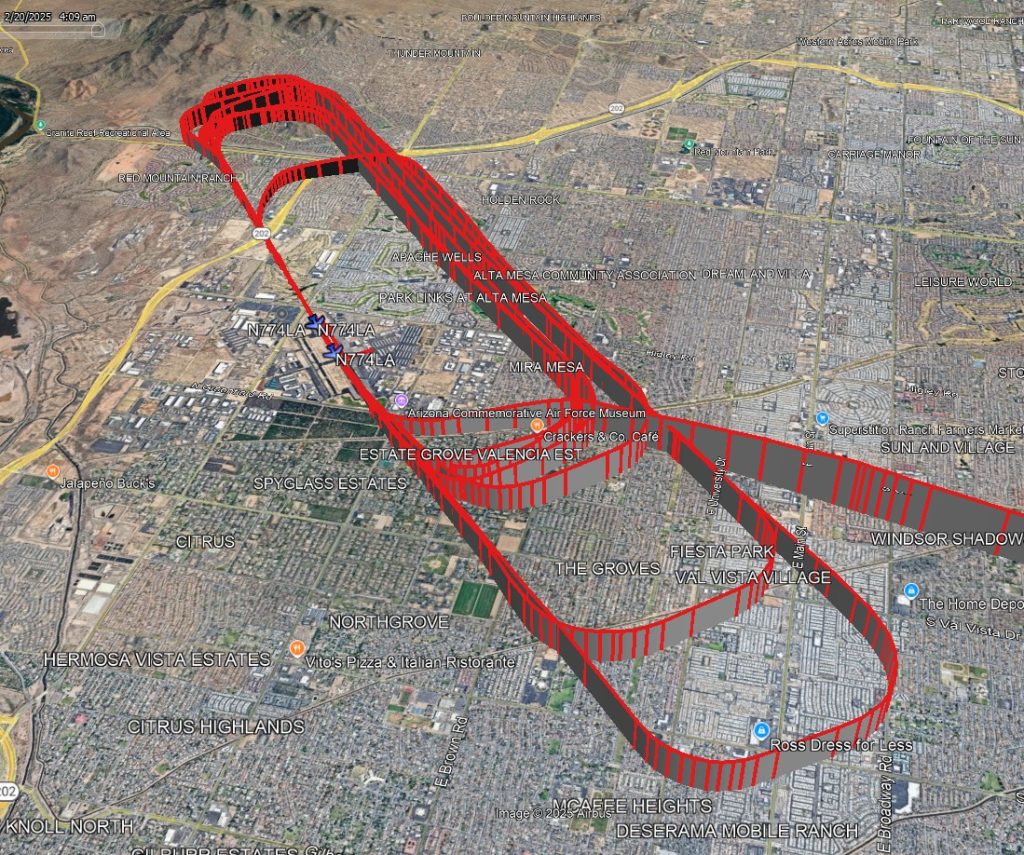
To Visualize the Track in 3D:
Scroll to the bottom of the left-hand side, and click the “baro + avg” button as shown. This will produce a track most accurately aligned with Google Earth terrain.
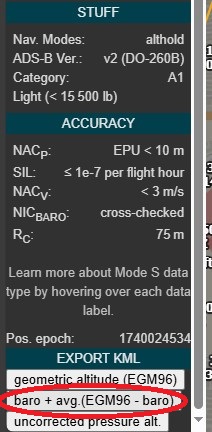
A KML file will be generated. Opening the file in Google Earth will show the aircraft’s 3-dimensional track. This KML file can even be loaded into FlySto to recreate what the cockpit view might have been!